Create a schedule
Run a task every day, every week or at a chosen time, automatically.
A schedule starts a task for you: every morning, on weekdays, once a week or once on a chosen day. Every run is an ordinary task in your list.
Creating one
- Open Tasks and go to the Schedules tab. Schedules can be shown as a list, a calendar or a board.
- Select New schedule.
- In What to do describe the task, for example "Summarize the news about my industry".
- Choose the agent: a schedule needs someone to do the work. If you have no agents yet, create one first. Change the priority if you need to.
- In Repeat choose how often and set the time.
- Select Create schedule. Under the time field you see when the first run will be.
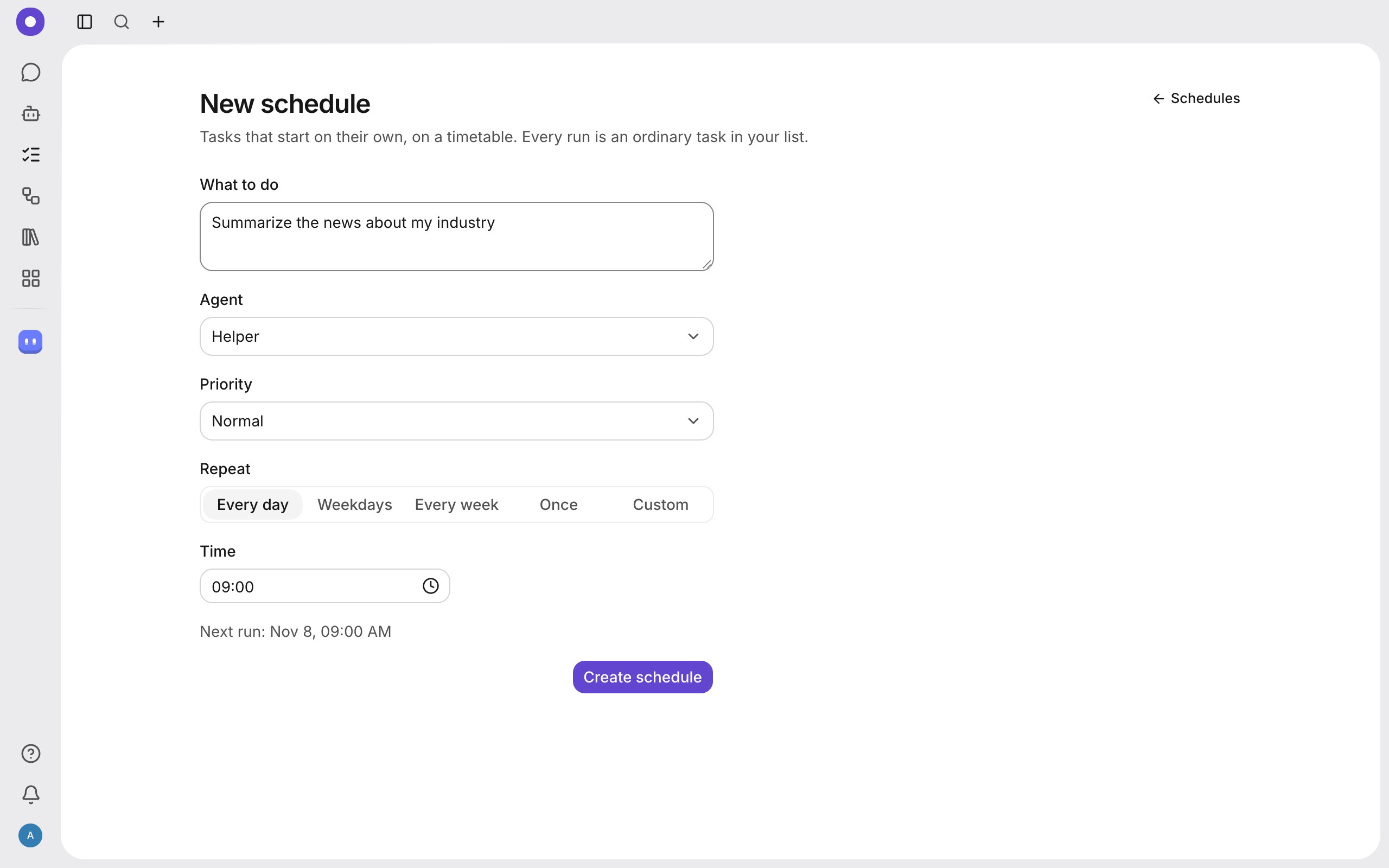
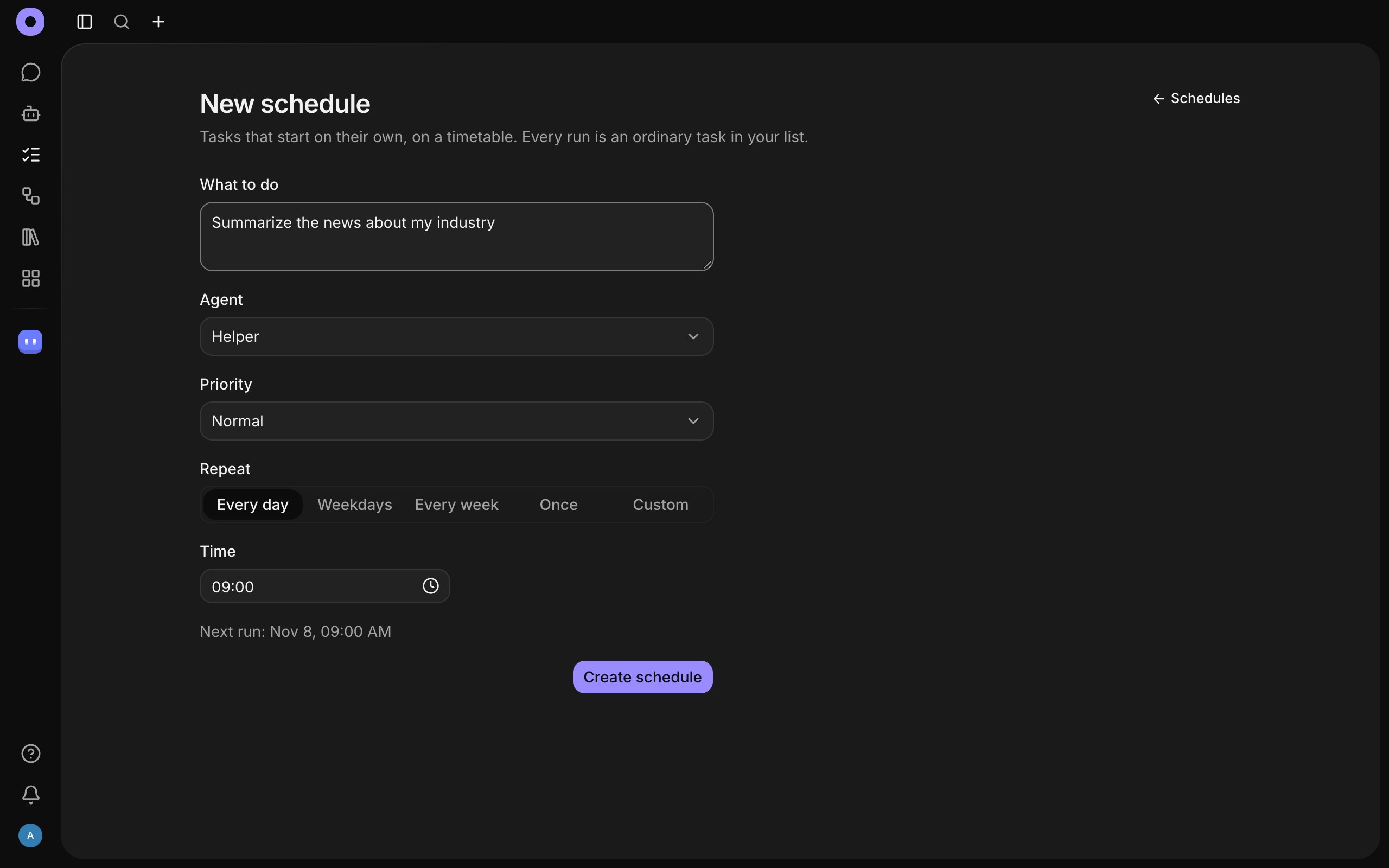
Repeat options
| Option | When it runs |
|---|---|
| Every day | Every day at the set time. |
| Weekdays | Monday to Friday. |
| Every week | On the chosen day of the week. |
| Once | On the given date and time. |
| Custom | By a cron expression of five fields: minute, hour, day of month, month, day of week. |
Time is in 24-hour format, for example 09:00, in your device's time zone.
Managing it
- The list shows when a schedule runs next. A schedule can be paused.
- Run now starts the task at once without waiting for the scheduled time.
- "Past runs" keeps the history, and each run opens its task.
- If several runs in a row fail, the schedule pauses itself and its window shows the reason.
Limits
The number of schedules and the shortest gap between runs depend on the workspace plan. If a limit is reached you see a message.
What next
For scenarios where one step follows another, use workflows.